You Need to Use a Password Manager
Life in a digital world has become much more security focused in the last 20 years. There are now so many rules and recommendations for how you access sites and apps that it’s easy to get confused and just give up. But there’s good reason to do what’s being recommended. You trust the sites and apps you use to handle your information appropriately and while that may differ for social media compared to banking services, you should always expect that your access credentials are secure.
Your credentials, like your username and password, are the things that represent you for that web site or app (I’ll combine these to “app” from here on). They don’t care that what colour your hair or eyes are, they don’t know that it’s not actually you typing in that username and password. It’s a computer making a decision that what was provided is what was expected.
When the people who created the app made some decisions on how the computer stores your username, password, etc they may have been fine at the time or they may have been poorly informed, under time pressure, etc. For any number of reasons, what they did then might not be good enough now. If it’s not good enough now, it’s really a matter of time until someone finds out and has some motivation (financial or otherwise) to create a copy of all those credentials people use for that app. This is where it becomes obvious that using the same password, or even username, across all the apps you use, is a bad idea. If Bad Guy One now has access to your credentials for the Acme Corp web site and most likely your email address too, they can put that to work to find you on other, possibly more lucrative apps.
Your email address links your usage of different web sites and apps to you. If you reuse the same password on different apps, the security of your information matches that of the app with the worst security. Bad Guy One doesn’t need to hack those other apps to get access. If you used the same password from the Acme Corp app as your Gmail account (an example of a worst case), then they can simply reuse that too. You wont even know it’s being used and this is why Google emails you about new logins when they happen.
The worst part about someone else having access to your email - it’s where your password reset verification emails go to. And those new login warning emails. Other than the app itself, the email address you use for apps is the weak point of the whole process. You need to ensure that it’s the the strongest.
So what can you do about this? Do you have to remember lots more passwords now across all the apps you use?
But First - MFA
MFA? Multi-Factor Authentication. If an app allows you to use MFA, you really should as it greatly reduces the password problem.
MFA requires you to sometimes use another code in addition to your username and password. This code is created by something you have, like a different app or a small USB key. If Bad Guy One doesn’t have that code, they still shouldn’t be able to login, even if they have your username and password. A good app design might mean you need to use the code only when logging in for the first time from a new computer, phone or web browser. Otherwise it’s invisible.
You can use free apps like Google Authenticator, Microsoft Authenticator, Authy or some of the password managers below can also act as the MFA code provider.
Password Managers
OK, so with a unique password for each app and hopefully this MFA thing, you’re going to need some help. If you’re already writing passwords down in a notebook at home, you’re pretty much doing the same process. But a password manager app will allow you to do the same thing while still sitting on the couch using your phone. You just need to remember ONE password - the one that unlocks your password manager. If you’re using a mobile app, you can probably just use your finger print or face to do the same unlock process. Easy.
A password manager also makes long passwords simple to use. When it comes to a hacker trying to guess your password, it’s the length that really matters, certainly much more than the complexity. The key to using a password manager is copy and paste. You simply copy the password and paste it into the web site or app. You don’t need to remember it or even see it.
To help select a password manager, you need to have a think about the various devices you use now or in the near future. The password manager you choose needs to work on those and in the scenarios you use them. If things change in the future, that’s OK, it might mean you need to change password managers, but they should allow for exporting and importing which makes this pretty easy.
- What browser do you use? Is there a browser extension for the password manager?
- What mobile phone do you use? Is the password manager in Google’s play store or the iOS store?
- What does the app look like and how easy is it to use?
- Password manager apps on mobile can act as the default password provider and automatically show when a password field shows in an app or web site.
- How much does the app or service cost? In most cases there’s a free option so you can try them out.
- What’re the additional features? Some can store general info like your name, email, address, etc that can help fill out forms.
- Where does the data get stored? The common scenario is that the password manager will store your information in their own servers which makes it super easy to have all that information stay synchonised across your devices. It does mean all your secrets are held by someone else though.
- Does it support MFA? We said it’s important for individual apps, so it’s really important for the place where you store ALL your passwords.
- Who do you need to share passwords with? Perhaps you and the spouse need the same login for the power company or telco?
The password manager should also do the following to help you out with your overall password security.
- Warn you when you have multiple accounts with the same password. We’re trying to avoid that right?
- Alert you when an app you use has suffered some sort of data breach and recommends you change your password.
- Give you an indicator on the quality of your passwords.
- Automatically change your password in web sites or apps that support it.
Finally - what’s the quality of the security of the company making the password manager? It’s a really difficult question for anyone to answer, but if the password manager has been reviewed by independant third party security specialists who had access to their code, that’s a good thing. If the web site for the password manager doesn’t mention their own security or how they’ve been measured, be wary.
Some options - prices are for the Personal versions where applicable.
Note: These are a very small selection of password managers. There are many more options available and you should have a good think about your requirements before spending your money.
Enpass
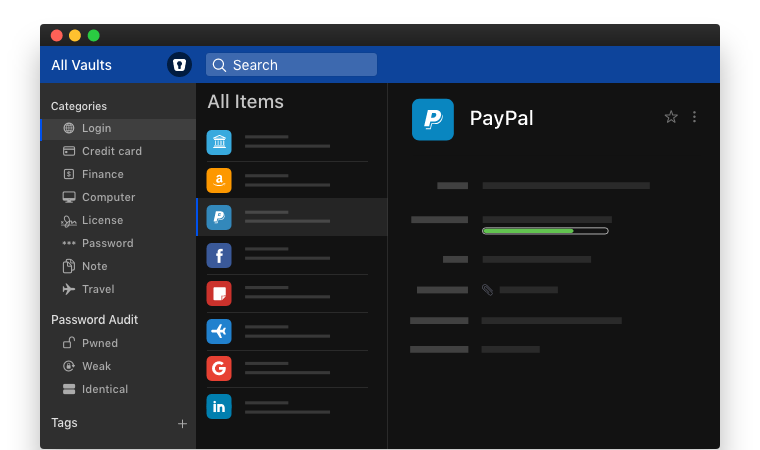
Enpass is well priced (it’s still better than most and the desktop apps are free) and supports iOS, Android, Windows, Mac OS and Linux. It’s reliable and easy to use and was the first mobile password manager I paid for.
It’s also one of the few that allows you to store the file with all your information somewhere of your own choosing. That could be just a directory on your PC or it could be a file sharing service like Google Drive, Onedrive, Dropbox, etc. To use the app on other devices, they still need access to that same location, but it works well.
They offer a family plan option for up to six people and unlimited devices.
Price: US$2.20 per month and the desktop OS version is free
1Password
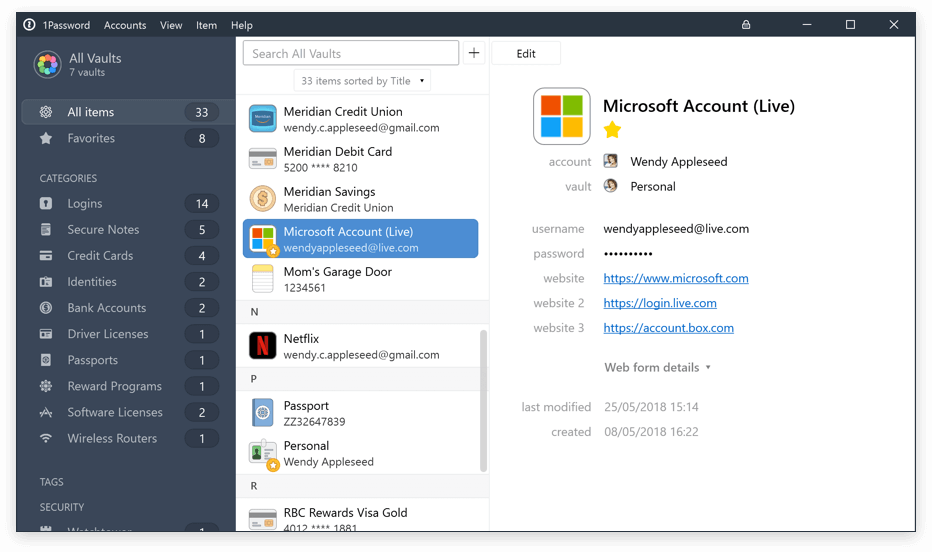
1Password is widely used and comes with many options, some more targeted at business use for password sharing amongst team members. It stores your information in their own hosted systems and has app options for all the common OS and devices. It’s not the cheapest but comes with almost all the features you could want.
Your information is stored on their servers and you manage who else has access to the data. If you use it with other family members or a team at work, you can help ensure they don’t get locked out.
They offer a family plan option for up to five people and unlimited devices.
Price: US$2.99 per month with a 14 day free trial
Bitwarden
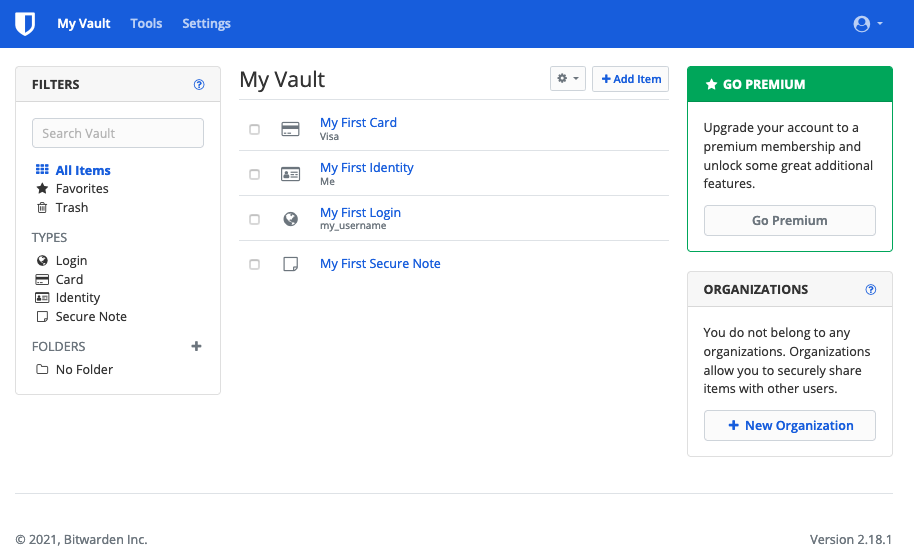
Bitwarden offers more technical options for some of the techie folk. You can sign up for their normal service like the other password managers, but you can also deploy your own server version of their open source product. Docker instances for the Vaultwarden version allow you to host your own data and provide access for others to do the same. This may be a good option for a very cautious, but technically skilled business. BUT you need to know what you’re doing and ensure you can protect that information well enough.
They offer a FREE personal account, albeit with some limitations, like no MFA for the stored accounts. This might make it a good option for anyone just wanting to try how password managers work without committing to any costs. Their annual pricing for premium accounts is one of the cheapest for a paid service.
Price: Free for limited features, US$10 per year for full features
Keepass
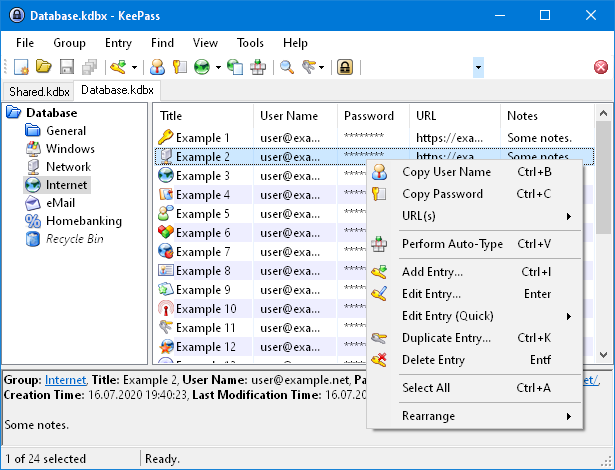
Keepass is an open source password manager that you can download for free and use without cost. There’s no company to host your data or provide support, but it’s easy to do the basics with. You can choose to store your password file on your local computer or in a file sharing option like Google Drive, Onedrive, Dropbox, etc. Like Enpass that can make the same file available on other devices.
Unfortunately the user interface for Keepass is pretty average and it’s slightly different across the different OS options. It’s free, which means it’s not as polished as other password managers.
Price: Free